Skip to content

Run & operate

Usage guide

Everything you need to run the AI overlay during live calls — hotkeys, workflows, and pro tips.

Launch before the call
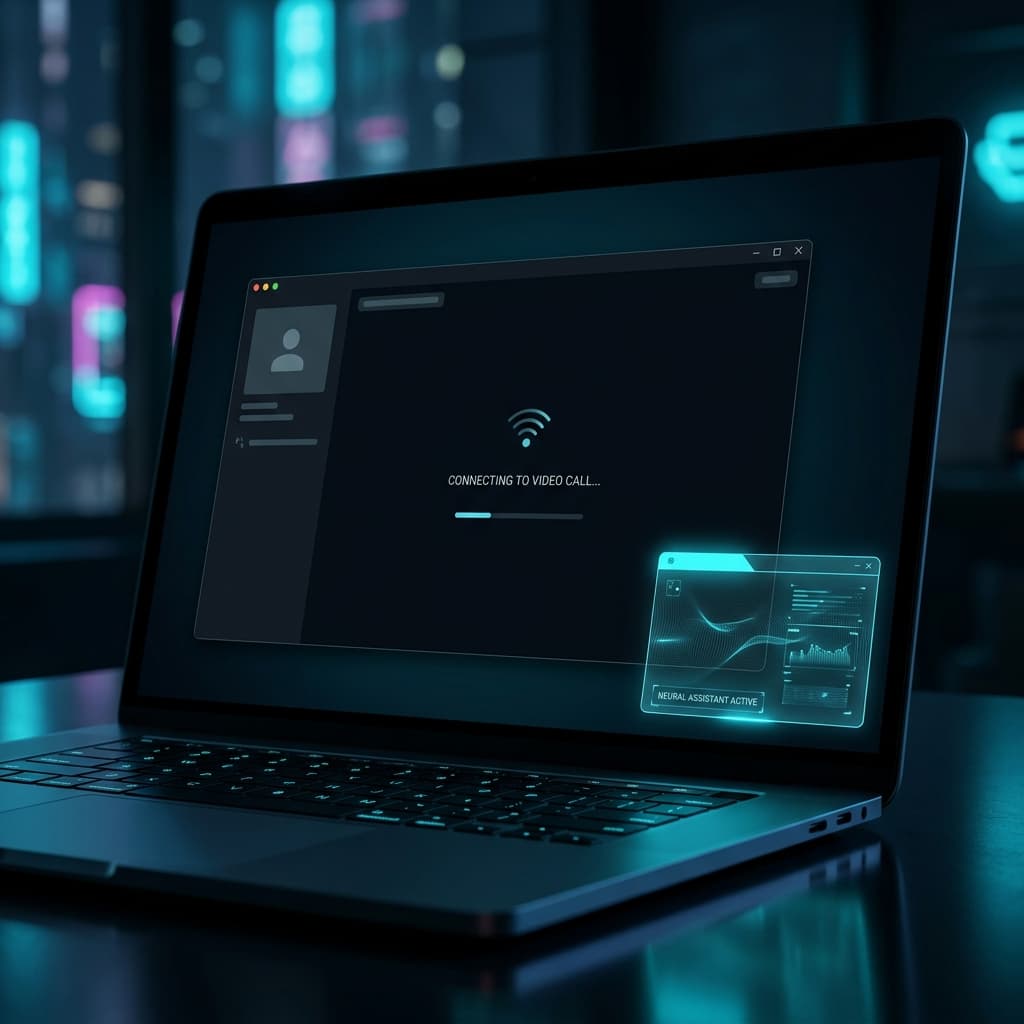
Launching overlay before the call

Open Unviewable before joining your meeting. The overlay attaches to your display and starts listening to system audio immediately — there is no extra setup at call time.

Audio capture runs through Windows' native WASAPI loopback, so you do not need a virtual cable, a re-routed output device, or a mixer. Whatever your default playback device hears, Unviewable hears.

Capture visual context
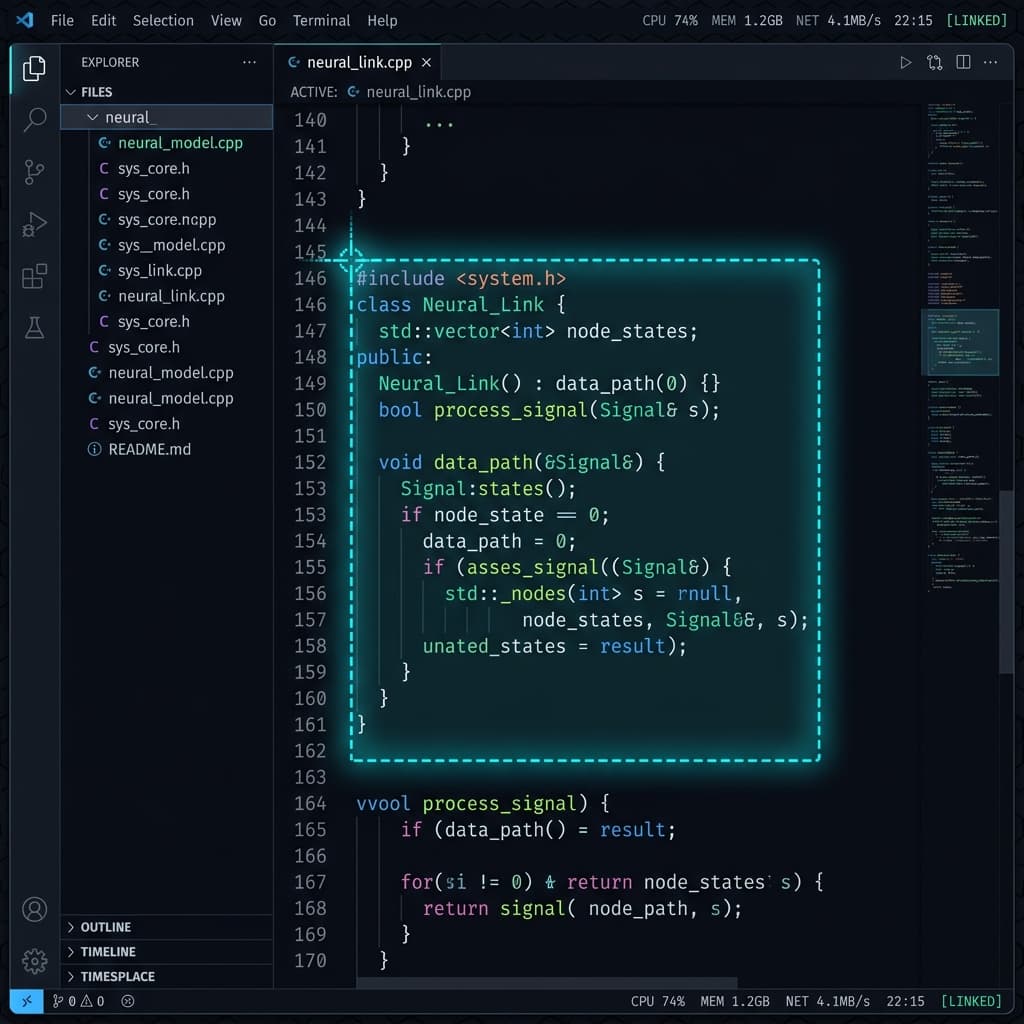
Selecting a screen region for AI context

Press Ctrl+Shift+S to draw a rectangle around the region you want the AI to read. Anything inside the rectangle — code, documents, chat messages, dashboards — feeds straight into the next AI analysis.

Smaller selections produce faster responses because there is less visual data to process, so highlight only the part you care about rather than capturing the whole screen.

Drive it with hotkeys
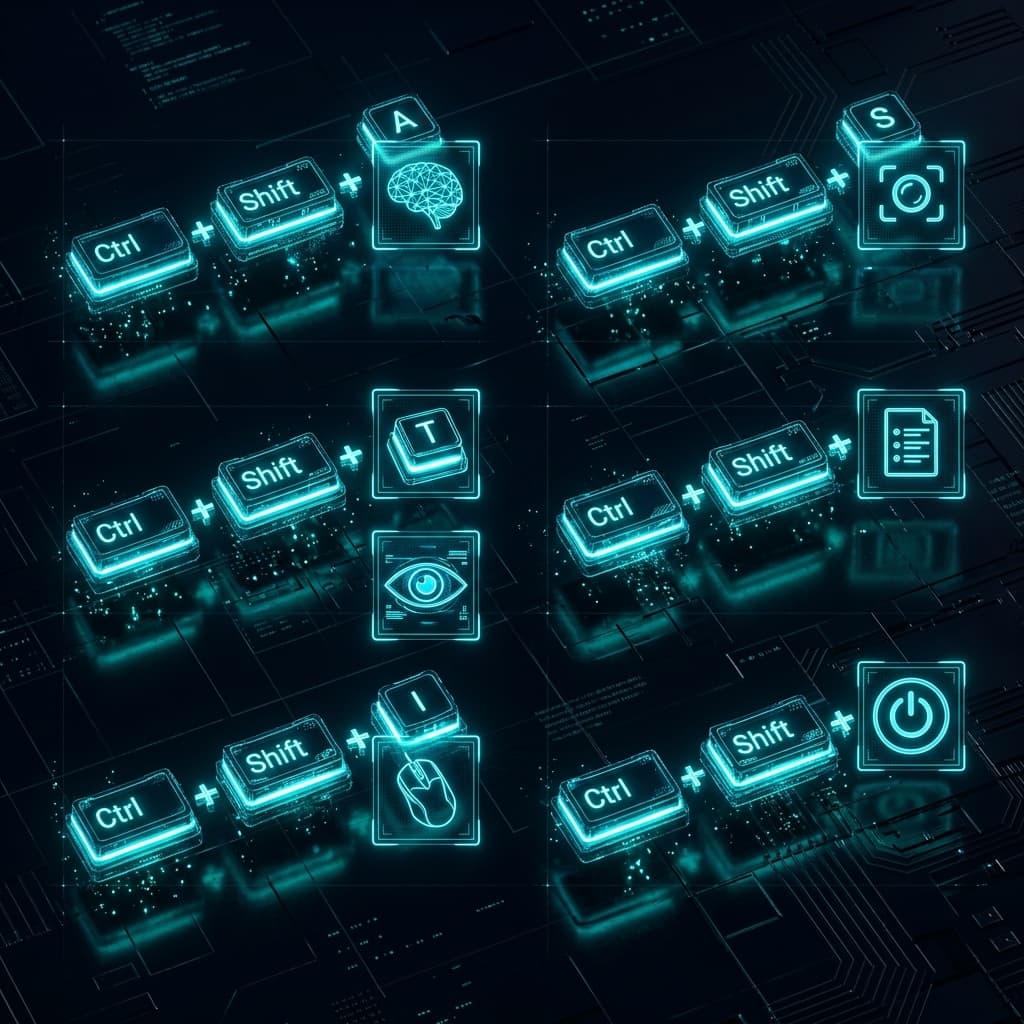
Hotkeys grid

Every action runs from the keyboard so the overlay never demands a mouse on screen during a call. The seven core bindings all share the Ctrl+Shift+… prefix so they are easy to recall mid-conversation:

  • Ctrl+Shift+S — Screen capture — select a screen region for the AI to read.
  • Ctrl+Shift+A — Ask AI — query the AI against the live transcript.
  • Ctrl+Shift+M — Meeting summary — generate a summary of the transcript so far.
  • Ctrl+Shift+T — Toggle panels — show or hide every overlay panel with a single press.
  • Ctrl+Shift+I — Interactive mode — flip in to scroll, drag, and copy AI responses.
  • Ctrl+Shift+P — Settings — open settings to tune opacity, font size, and the AI model.
  • Ctrl+Shift+Q — Quit — exit the application and release audio resources.

Review live intelligence
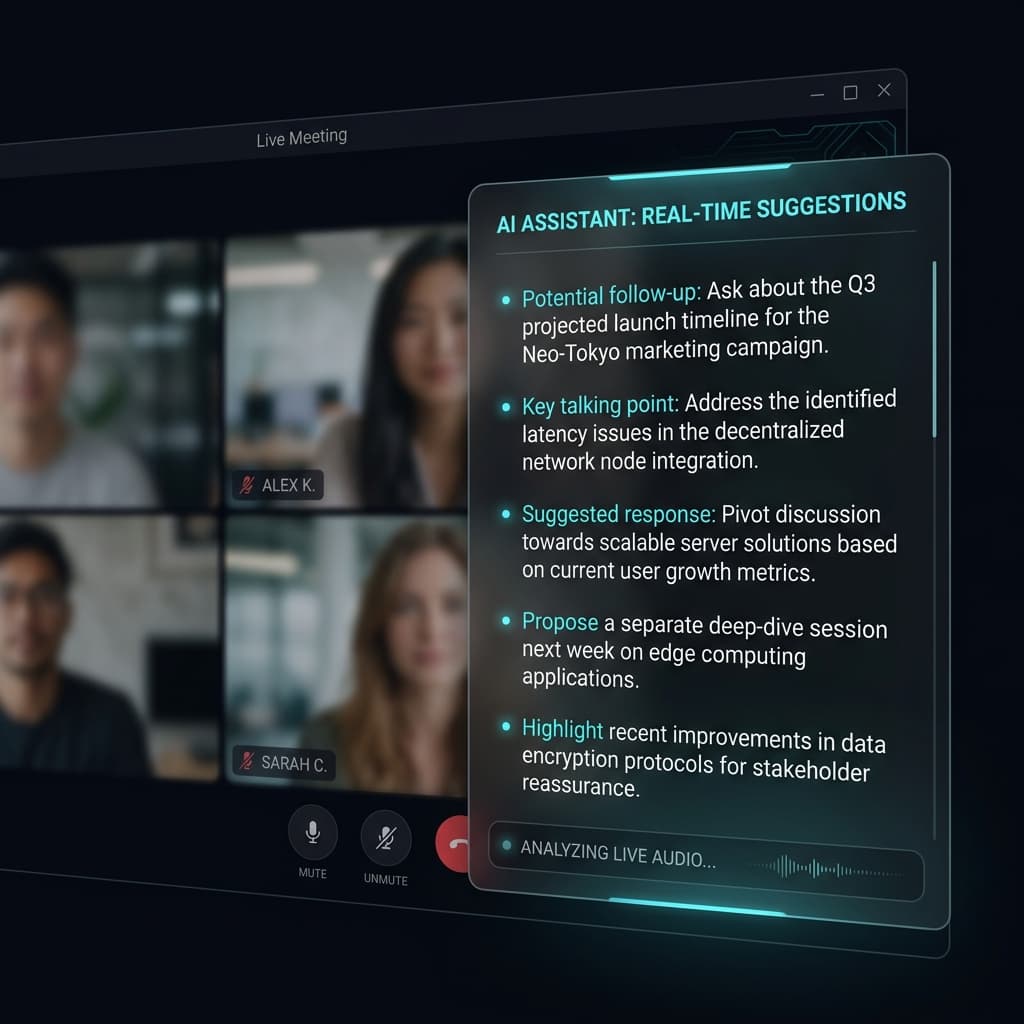
AI suggestions on the stealth overlay

AI-generated answers and talking points appear on the overlay in real time as the meeting progresses. Auto-detect listens for questions in the transcript and answers them automatically, with a 15-second cooldown between answers so the panel never spams you while one person speaks.

The overlay is invisible to every screen-capture pipeline, so what you read here never leaves your monitor.

Pro tips

Best practices

Level up from beginner to power user. A handful of habits make the difference between a clean session and one that fights you.

Audio setup

The app captures system audio — what comes out of your speakers or headphones — not your mic. Make sure the meeting audio is playing through your default output device. If you are on mute, the app still hears the other participants.

Screen selection

When using Ctrl+Shift+S, highlight just the relevant area — a code block, a specific paragraph, or a chat message. Smaller regions give faster AI responses from the Groq API because there is less visual data to process.

Click-through

The overlay is click-through by default — your mouse passes right through it to interact with windows underneath. Toggle interactive mode (Ctrl+Shift+I) only when you need to scroll or drag panels.

Panel positioning

Keep the overlay near your webcam eyeline for the most natural delivery. In interactive mode, you can drag each panel independently — the control panel, response panel, and transcript panel all have separate drag handles.

Troubleshooting

Common questions

The AI isn't responding
Check that your Groq API key is set correctly. Open config.ini and verify the api_key field, or run 'echo %GROQ_API_KEY%' in a terminal to check the environment variable. Also make sure you have internet access — the AI needs to reach Groq's servers.
It's capturing my audio but not the meeting audio
Unviewable uses WASAPI Loopback to capture system audio — the sound coming out of your speakers or headphones. If the meeting audio is routed to a different output device (e.g., a Bluetooth headset), make sure that device is set as the default Windows audio output.
The transcript seems inaccurate
Whisper works best with clear audio. Ensure the meeting volume is at a reasonable level and there's minimal background noise. You can also change the whisper language in config.ini (e.g., language = hi for Hindi) if the meeting isn't in English.
Can participants see the overlay?
No. The Windows DWM API (WDA_EXCLUDEFROMCAPTURE) tells the OS compositor to completely exclude the overlay from all DXGI-based capture pipelines. Zoom, Teams, Discord, OBS — none of them can see it. Only your physical monitor displays it.
Still having trouble? Contact support
If you are experiencing issues or have questions, please reach out to our team directly at join.invisibleai@gmail.com. We're here to help.

New here? Start with the Setup Guide to install and configure Unviewable before your first session.